
Get the full picture.
Point a camera at it. With Full Photo inventory, the photo is the inventory — no descriptions to write, no condition codes to mark.
Every written inventory comes down to the same line: an item number, a few words, and a string of codes. It’s slow to write, hard to read, and when a claim lands weeks later, everyone remembers those letters differently.
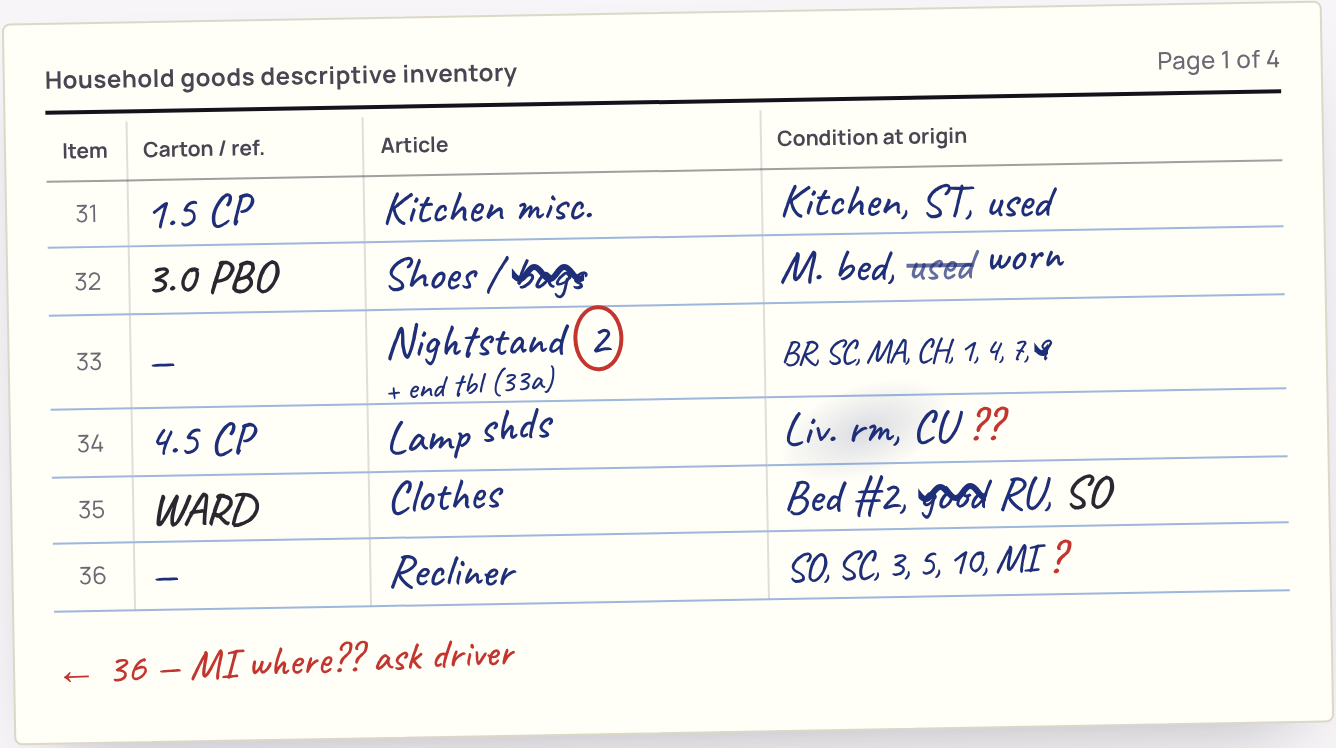
Tagdd+ closes that gap by keeping what the code was trying to describe — the picture itself.
How Full Photo inventory works
Five steps at the house. The driver handles one of them: the photo.
-
Tag the item
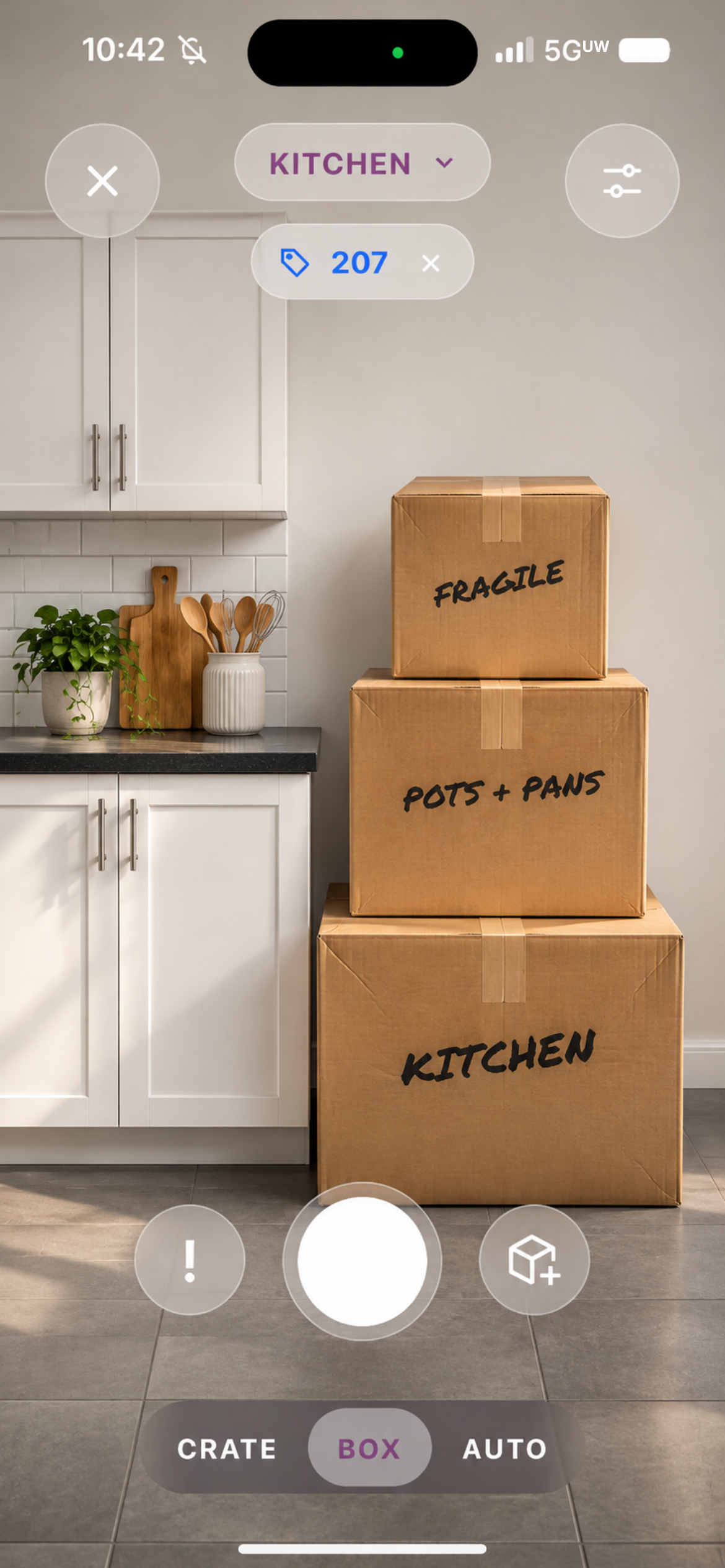
Apply the tag or sticker your crew already uses. The tag number and room show right on the camera screen, so every photo lands on the right item in the right room.

Room and tag, always in view. -
Pick the mode
A slider at the bottom of the camera sets what you’re capturing, and the options change to match.
- AutoJust shoot. No options, no decisions.
- FurnitureAdds a disassembly option, so teardown can be captured with Video Disassembly from the same screen.
- BoxSet the carton size and mark it packed by owner (PBO) or carrier packed (CP).
- CrateFor crated items. Point and shoot, like Auto.

-
Take the photo
The driver doesn’t describe the item and doesn’t mark its condition. Tap the shutter for one photo, or press and hold to take up to four — front, back, and the corner that matters.
If the item needs an exception, the ! button opens a one-tap list:
- CDCarrier disassemble
- CUContents unknown
- DBODisassembled by owner
- MCUMechanical condition unknown
- ECUElectronic condition unknown
- SWShrink wrap
- TPDThird-party disassemble
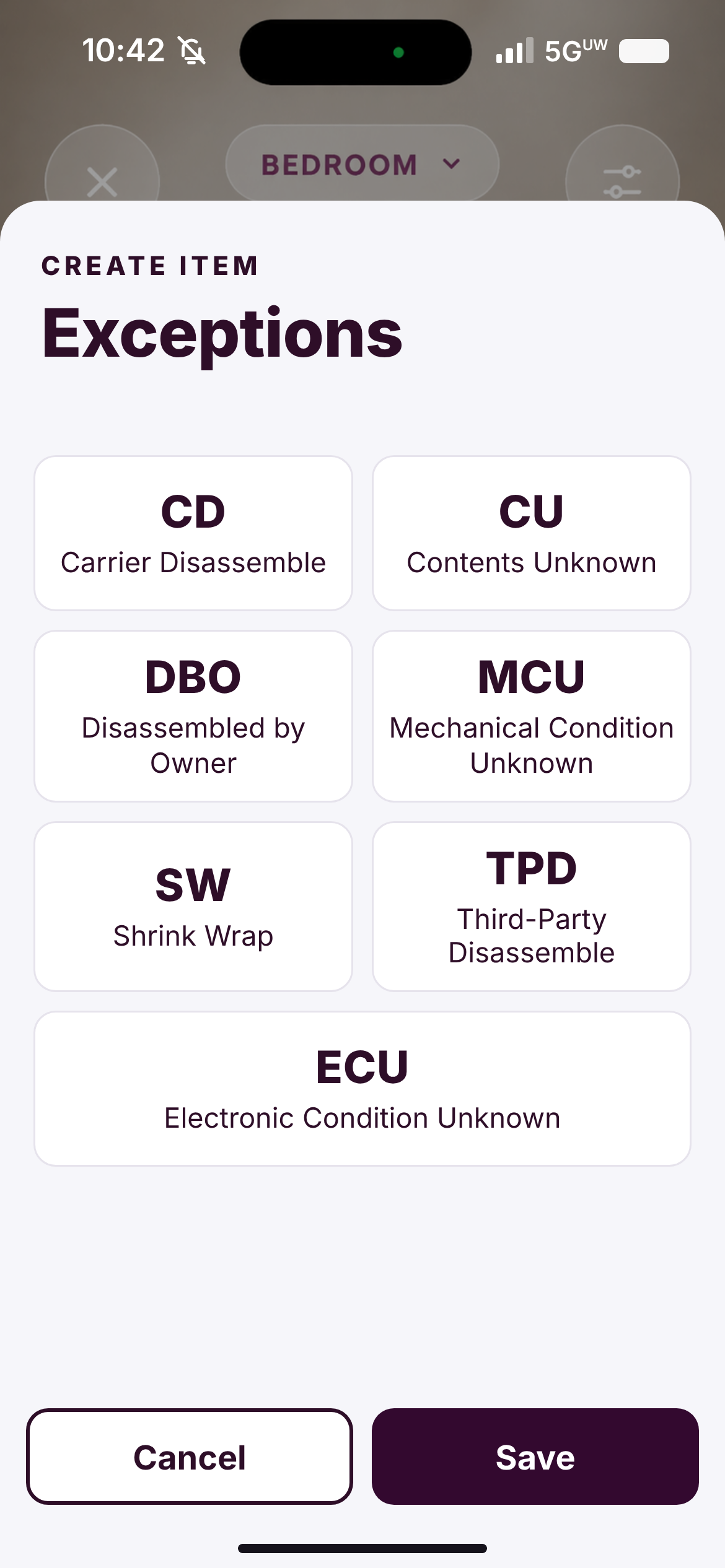
Up to four photos per item. Exceptions in one tap. -
Tagdd+ builds the record
Tagdd+ identifies the item and documents its condition from the image — furniture, electronics, boxes, categorized on sight. The photo and the record are saved together.
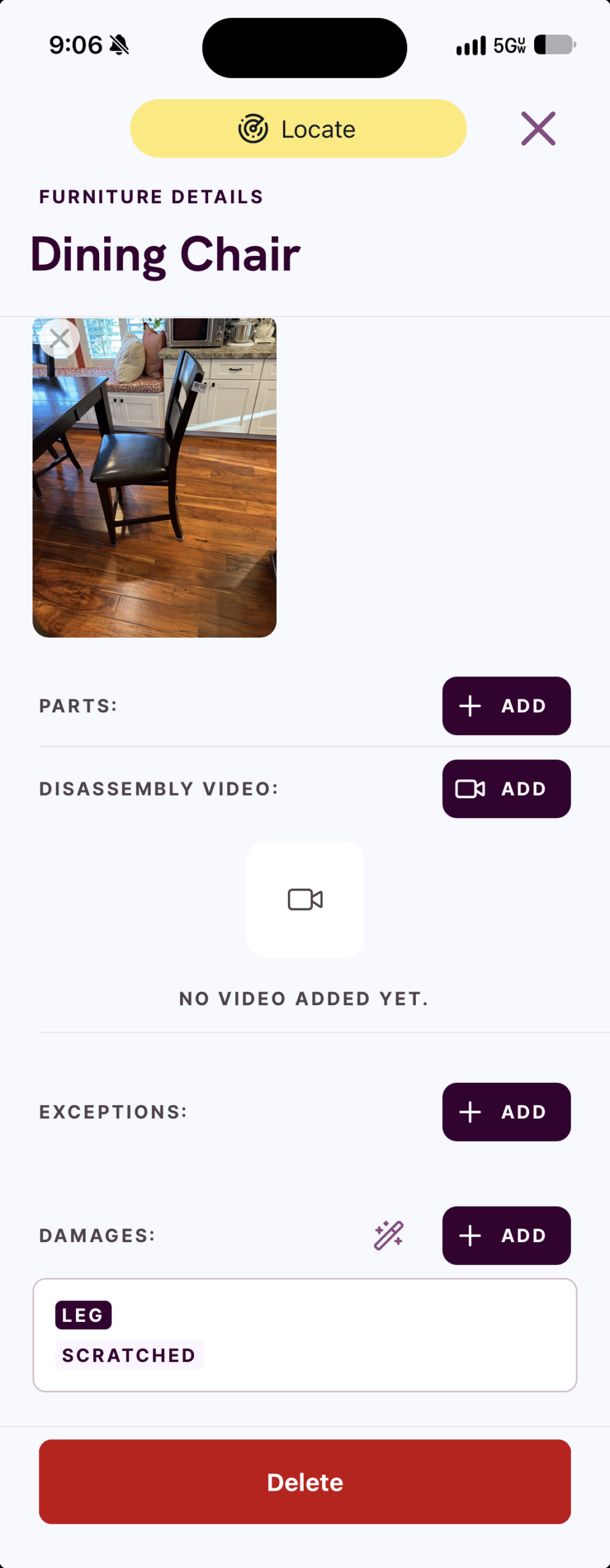
The item, its condition and the evidence, in one record. -
The photo travels with the item
At delivery, the crew and the customer see exactly how each piece looked at origin. If a question comes up, nobody is decoding “SC.” Everyone is looking at the same photo.
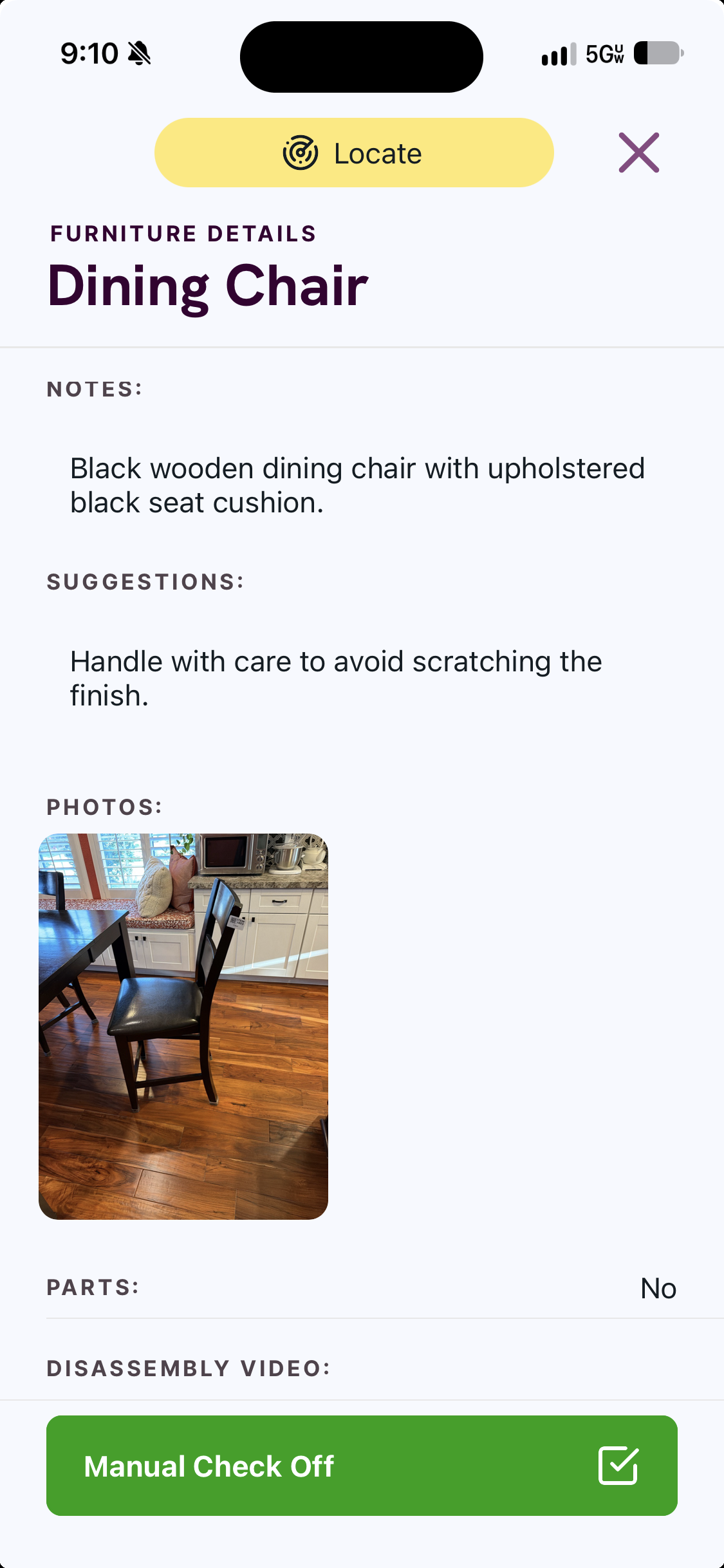
Every item, with the picture of how it left the house.
The driver’s job is the photo. Tagdd+ handles the rest.
Faster at the house. Stronger when it matters.
Drivers
Nothing to write, nothing to memorize. If you can take a picture, you can run an inventory.
Operations
A complete, visual inventory for every shipment, captured as the truck is loaded.
Claims
A condition photo on every item, ready to hand straight to an adjuster.
Customers
A delivery record they can actually see.
Be first to get the full picture.
Full Photo inventory is rolling out to a limited group of agents first — current Tagdd+ customers and new agents alike. Early access agents get hands-on onboarding from our team and a chance to shape what comes next with their feedback.
Stop writing it down. Get the full picture.
Keep learning
How AI is impacting the moving inventory
Where AI fits alongside RFID and NFC — and what it doesn’t do.
Why RFID and NFC matter in the moving industry
A real-world look at tagging, tracking, and customer trust.
Film the teardown, get the reassembly guide
Video Disassembly Capture turns teardown into step-by-step instructions.